 Call Now
How To Download Karvy (AKA KFIN) P&L Statement And Upload For ITR Filing Online?
Sale of stocks and mutual funds attract capital gains taxation. Manual entry of all the capital gain transactions is a tiresome process. With ClearTax's broker integration, all the capital gain transactions can be directly imported from the broker's site, thereby making the e-filing process much simpler. This article covers how investors can download their P&L statements from KFIN and file their ITRs.
But you can directly upload your Karvy P&L statement on ClearTax in just a few seconds and file your ITR within minutes.
How to Check and Download P&L Statement from Karvy?
If you are a Karvy user, here is how you can download your profit and loss statement:
Step 1: Visit the official website of KFintech/Karvy.

Step 2: Under ‘Period’, set the Financial Year (FY) as ‘Previous FY’.

Step 3: Fill in your e-mail ID and PAN. The system will send the report to your linked email address.

Step 4: In the Mutual Funds section, click on ‘All Funds’.

Step 5: Under Statement Format, select the format you want to download your P&L statements.

Step 6: Enter a password in the ‘Password’ and ‘Confirm Password’ sections.

Step 7: Click on ‘Submit’. The system will send your capital gains report to your email ID.

You can now download the report from your email ID for uploading and filing the ITR.
How to Upload Karvy P&L Statement and File ITR for Karvy trading on ClearTax?
The steps to upload your Karvy P&L statements for ITR filing via ClearTax are given below:
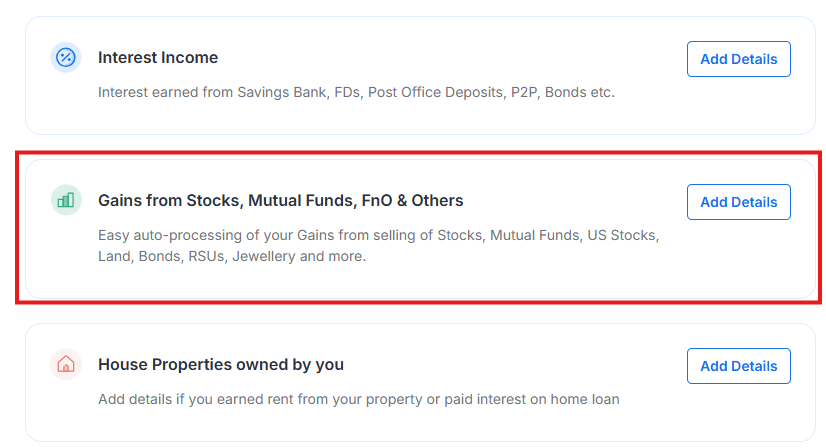
Step 1: Sign up on the Cleartax portal and navigate to the ‘Income Sources’ section. Then, under ‘Gains from Stocks, Mutual Funds, FnO and Others’, click ‘Add Details’.
Step 2: You will see a list of brokerage platforms. From the list, choose Karvy (KFintech).

Step 3: Click on the ‘Browse Files’ button.

Step 4: Upload the Karvy P&L statement. Cleartax will read the information and import the data for ITR filing. The system will automatically read your report and enter your capital gains details for ITR filing.
Upload the Karvy P&L statement using the Cleartax Template
Step 1: From the 'Income Sources' tab, click the ‘Add Details’ button under the ‘Gains from Stocks, Mutual Funds, FnO and Others’ heading.
Step 2: Scroll down and click on the ‘Use Cleartax Template’ button under the ‘Don’t see your brokers above? Use Cleartax template’ heading.

Step 3: Download the template by clicking on the ‘Download Template’ button in the first step. Enter the details of your capital gain investments as instructed in the template and upload the template by clicking on the ‘Browse Files’ button. Cleartax will read your transactions and calculate your capital gains details within minutes.

You can quickly download your P&L statements from Karvy (KFIN) by following the above steps. You can enter this information manually; however, this might be quite time-consuming and lead to errors. Cleartax allows you to upload the Karvy (KFIN) P&L Statement to avoid such instances and hectic procedures. Cleartax processes 1000s of transactions in seconds and calculates complex taxes in a minute.
File your ITR now with Cleartax and take taxes off your mind.



Cleartax is a product by Defmacro Software Pvt. Ltd.

ISO 27001
Data Center

SSL Certified Site
128-bit encryption