|


Steps to Pay GST Liability in CMP-08 on GST portal
CMP-08 must be filed by all taxpayers registered under the GST composition scheme, including service providers. It is used to declare and pay self-assessed tax every quarter and must be submitted by the 18th of the month following each quarter.
The GSTN enabled the CMP-08 filing facility on 29 July 2019. This form replaced the earlier quarterly GSTR-4 from FY 2019-20 onwards. Instead, composition taxpayers are now required to file GSTR-4 annually, starting from April 2020 for the financial year 2019-20. (as per Central Tax (Rate) Notification No. 2/2019 dated 7 March 2019).
How to File CMP-08 on GST portal
The following are the steps to file GST CMP-08 (payment of self-assessed tax) on GST portal:
Step 1: Log in to GST portal and navigate to the CMP-08 tile on the return dashboard
Select the relevant financial year and choose the return filing period for the relevant quarter. Proceed by clicking on ‘SEARCH’. Click on ‘PREPARE ONLINE’ for the CMP-08 form (Statement for payment of self-assessed tax).

Step 2: Fill up the tax liability details in table 3 of the CMP-08 form
2.1 Fill in the summary of supplies and tax payable for three months. Add interest for delayed CMP-08 submission.

2.2 Select ‘File Nil GST CMP-08’ if the taxpayer has no tax liability.

Step 3: Click on ‘SAVE’ to save the details entered.
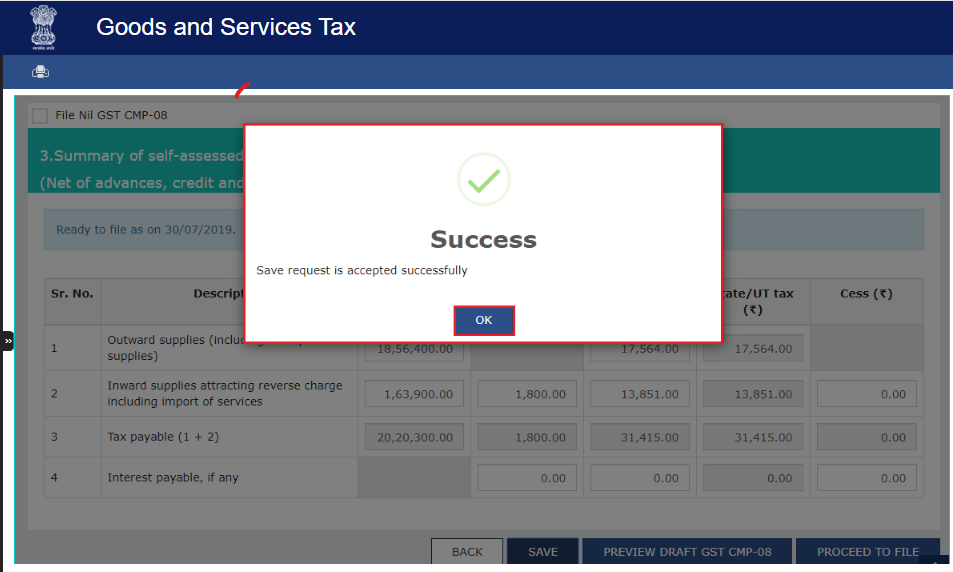
Step 4: Preview draft CMP-08 before making the tax payment
Click on ‘PREVIEW DRAFT GST CMP-08’ to review the accuracy of details entered. The download page will be displayed.

Step 5: Click on Proceed to File for filing GST CMP-08

Step 6: Make the payment towards the liability and file CMP-08
Pay using the available balance in the electronic cash ledger, or click ''Create Challan'' to choose NetBanking or NEFT if the balance is insufficient.

Step 7: On Clicking on ‘Create Challan’, the page displaying the ‘Total Challan Amount’ in figures and words will be displayed. Select the payment mode (E-Payment, Over the Counter, NEFT, or RTGS) and click the ‘Generate Challan’ button.

Step 8: Once the challan is generated, taxpayers can click on the ‘Download’ button to view the challan generated or click on ‘Make Payment’ button.

Step 9: Go to the ‘Returns Dashboard’ again; the additional cash required is now Nil. To preview GST CMP-08, click ‘PREVIEW DRAFT GST CMP-08’ (PDF). GST CMP-08 will be displayed in PDF Format.


Related Article



Cleartax is a product by Defmacro Software Pvt. Ltd.

ISO 27001
Data Center

SSL Certified Site
128-bit encryption